How to ConvertYoutube movie to diff Format's


There may be lot’s of chances that you can find your Favorite songs on Youtube. But on Youtube they are not in MP3, converting every Youtube Videos to MP3 from PC may be very Annoying. But here is a tool available online i.e Easy Movie Converter which helps you t convert Youtube Videos into Mp3 without downloading videos.

This service is fast, free, and requires no signup. All you need is a Video URL, and our software will transfer the video to our server, extract the MP3, and give you a link to download the audio file. So you are able to listen to your favorite YouTube tracks on every MP3 player.


Enter the URL from any YouTube, click ‘Download’ and this application will quickly grab the flash video file and extract the audio as a downloadable MP3. Depending on the size of the file, it may take a minute or so – please have patience.

Check Easy Movie Converter

..

..

..


How to download your blog as PDF to your computer

The full form of PDF is Portable Document Format.It is one of the mostly used file format, To post information on Web.The secret behind the Love of webmasters to PDF is that,PDF documents can’t be modified or edited.So, they are sure about the safty of their works.i.e, Your work will be in the pure form as you created even if it is downloaded by anyone else – He can’t modify that one.

When you save your webpage also, there is a chance for modification if it is image, or sure chance if in HTML……! It means that you have to give security for your downloaded Pages also.The file size also will be more.So it would be better if you could download those in the PDF format, which is the common type and has no risks.But Normally, I haven’t seen an option yelling “download the page as PDF” in any browsers.You can use this converter named HTML-PDF Converter to download the pages in pdf format.You want to give the URL of the web page only.Then the Converter will convert the page to PDF and you can save it in your Computer.

See the real page here and replace the URL with the URL of your Webpage.Now click on “Make PDF”, you’re done.Now you can carry your web page too with you, in The Portable format, without any fear of modification on it.


Online YOUTUBE videos to Ringtone maker

Now itz eazy to make your fav YOUTUBE videos into RINGTONES..
just goto http://video2ringtone.com/ and follow the steps.....

Step 1

Copy the URL of the YouTube video from your browser's address bar to the URL field below and click "DOWNLOAD".

Step 2

Wait until the video is fully loaded into the player. Then move green markers to select the needed portion of the video. Set the audio format and click "MAKE A RINGTONE".

How to find invisible friend in Gtalk

Here is the simple trick to find the friends who are online in google talk but appearing offline.
Follow these steps to check who all are in invisible state.
  1. Open the chat window by clicking your friend’s name
  2. Click you friends name and select “Go off the Record”.
  3. Send some message to that user.
  4. if you get the feedback from GTALK that “User is offline and can’t receive messages” in red color means that the user is really offline.
  5. But if you get no response that means that the user is appearing offline and in invisible mode.

Internet Explorer Shortcuts

Internet Explorer or simple IE is one of the good browsers used by many people. There are many ways by which you can make your browsing experience easy and fast. All you need is some short cuts. here are some of the IE 7 shortcuts:
--Open a link in a new tab in the background [Ctrl] + Click (or just middle-click)
--Open a link in a new tab in the foreground [Ctrl] + [Shift] + Click
--Open a new tab in the foreground [Ctrl] + [T]
--Switch between tabs [Ctrl] + [Tab] (forward) OR [Ctrl] +[Shift] + [Tab] (backward)
--Close current tab (closes current window when [Ctrl] + [W] OR [Ctrl] + [F4] there are no open tabs)
--Open a new tab in the foreground from the address bar [Alt] + [Enter]
--Switch to the nth tab (n can be 1 to 8) [Ctrl] + [n]
--Switch to the last tab [Ctrl] + [9]
--Close all other tabs [Ctrl] + [Alt] + [F4]
--Open quick tab view [Ctrl] + [Q]
--View list of open tabs [Ctrl] + [Shift] + [Q]
--Increase zoom (+10%) [Ctrl] + [+]
--Decrease zoom (-10%) [Ctrl] + [-]
--Original zoom [Ctrl] + [0] OR [Ctrl] + [*]
--Go to the Toolbar search box [Ctrl] + [E]
--Bring down the search provider menu [Ctrl] + [Down Arrow]
--Go to home page [Alt] + [Home]
--Go backward a page [Alt] + [Left Arrow]
--Go forward a page [Alt] + [Right Arrow]
--Refresh the page and the cache [Ctrl] + [F5]
--Stop loading page [Esc]
--Open Favorites [Ctrl] + [I]
--Open Favorites in pinned mode [Ctrl] + [Shift] + [I]
--Organise Favorites [Ctrl] + [B]
--Add current page to Favorites [Ctrl] + [D]
--Open Feeds [Ctrl] + [J]
--Open Feeds in pinned mode [Ctrl] + [Shift] + [J]
--Open History [Ctrl] + [H]
--Open History in pinned mode [Ctrl] + [Shift] + [H]
--Select the Address Bar[Alt] + [D]
--View list of previously-typed addresses [F4]
--View list of search providers [Ctrl] + [Down Arrow]

Function Key – Keyboard Shortcuts of Microsoft Excel

Function key keyboard Shortcuts which can be used in MS-Excel. Function keys are not often used, even by people who use keyboard shortcuts. But they can simplify your work. The shortcuts are divided in sections for your reference. The operations in Office 2003 and 2007 are explained.
Function SHortcut Keys of Excel

Shortcut Function Keys for MS- Excel:

F1: If used by itself the [F1] key opens the Excel help file irrespective of the application version.
CTRL + F1: Either displays or hides the ribbon in Excel 2007. In 2003, it shows or hides the current task pane.
ALT + F1: It creates a chart on the basis of the data selected in either versions of Excel.
ALT + SHIFT + F1: Inserts a new sheet in the workbook.
F2: It helps to append data to a cell.
SHIFT + F2: Enables a user to add comments to a cell.
ALT + F2: Displays the "Save As…" dialog box which is used to save a file for the first time.
CTRL + F2: It displays the "Print Preview" window in Excel 2007.
SHIFT + F3: Enables you to insert functions as required.
CTRL + F3: Opens the "Name Manager" dialog box in Excel 2007 and the "Define Name" dialog box in Excel 2003.
SHIFT + CTRL + F3: Opens the "Create Names" dialog box.
F4: It repeats the last action. If you have relative cell reference in a cell, select the reference in the formula bar and press [F4] to convert it to absolute reference (i.e. from =A1 to =$A$1). Press [F4] repeatedly to fix the rows and columns referenced. (i.e. =$A1 or =A$1)
CTRL + F4: Closes the application.
F5:  A shortcut to display the "Go To" dialog box.
CTRL + F5: Restores the container window size.
SHIFT + F5: Open the "Find and Replace" dialog box.
F6: It enables you to toggle between different sections of your spread sheet. It works best with split panes in your worksheet.
F7: Enables "Spell Check".
F8: Enables or disables the "extended mode" in Excel 2007, which allows you to select cells with the arrow keys instead of navigating with them.
ALT + F8: Enables the "Macro" dialog box in Excel 2003.
CTRL + F9: It minimizes the current workbook. 
F10: In Excel 2007, it displays the ribbon hotkeys. In Excel 2003, it enables you to select the menu commands.
CTRL + F10: It maximizes or restores the window.
F11: Creates a chart on a separate sheet.
F12: Opens the "Save As…" dialog.

5 Best Instant Messengers / IM Clients For Mobile Phones

You can chat with your friends and family using different IMs for desktop. What if you want to chat using your mobile phone? Here is a list of top 5 Instant Messengers or IM clients for Mobile Phones. These mobile chat applications can be used to access almost all popular IM’s like Gtalk, Yahoo messenger, MSN Live messenger, AIM, Facebook, MySpace, Skype etc.
There are a couple of requirements which are required to access these services, like

  1. Java supported Mobile phone.

  2. Internet connection to your mobile phone.
If your cell phone meets the above requirements, then here are the top 5 Instant Messengers / IM clients for mobile phones (in alphabetical order):
Once you use this mobile messaging reason, you would surely understand why eBuddy is the most popular IM client for mobile phone across the planet.
ebuddy
It enables you to log on to number of IM networks simultaneously which include MSN, Yahoo!, AIM, GTalk, Facebook, ICQ, Myspace. It displays allyour friends on a single list. It has got a simple yet fully functional user interface.
Fring is growing big with time and it is not just because of their mammoth advertisement campaigns. With Fring, you can connect with your friends on different IM Network which include Skype, MSN Messenger, Google Talk, ICQ, SIP, Twitter, Yahoo! and AIM.
fring
You can even use Fring to make local and international calls, as it costs less than conventional way. It also offers number of cool Add-ons (like Twitter and Last.fm) which enhance its performance further. Fring is the future of IM clients formobile phones.
Nimbuzz is quite more than a conventional IM client. With Nimbuzz, you can chat, call and even share files from free on the IM networks like Skype, Windows Live Messenger (MSN), Yahoo Messenger, ICQ, AIM, studiVZ, GoogleTalk, Facebook, MySpace, Jabber and many more.
nimbuzz
I won’t be surprised if you get addicted to Nimbuzz because it is capable of offering all the features that a computer based IM client can.
RockeTalk is the latest mobile community which enables you to meet new people right on your mobile phone. With RockeTalk you can connect to different IM Networks like Yahoo!, MSN & Google Talk.
rocktalk
It is more like an interactive platform where people can share their photos and content. It also allows you to access its galleries where you can download some of the cool videos, wallpapers, ringtones and much more.
There would very few of you who haven’t heard the name Skype. It has created a success vibes in the arena of computer IM clients.
skype
The mobile version of Skype is equally excellent in performance. It can be used to make Skype to Skype calls for people of Australia, Brazil, New Zealand, Chile.
With these IM clients you can keep in touch with your friends even when you are on the move. If you know any more free IM’s for mobile phones, share them through your comments. Happy Chatting! :D

Shortcuts for Firefox

Ctrl + Tab or Ctrl + PageDown:   Cycle through tabs.
Ctrl + Shift + Tab or Ctrl + PageUp:   Cycle through tabs in reverse.
Ctrl + (1-9):  Switch to tab corresponding to number.
Ctrl + N:    New window.
Ctrl + T:    New tab.
Ctrl + L or Alt + D or F6:   Switch focus to location bar.
Ctrl + Enter:     Open location in new tab.
Shift + Enter:      Open location in new window.
Ctrl + K or Ctrl + E:     Switch focus to search bar.
Ctrl + O:    Open a local file.
Ctrl + W:     Close tab, or window if there’s only one tab open.
Ctrl + Shift + W:    Close window.
Ctrl + S:     Save page as a local file.
Ctrl + P:     Print page.
Ctrl + F or F3:     Open find toolbar.
Ctrl + G or F3:      Find next…
Ctrl + Shift + G or Shift + F3:     Find previous…
Ctrl + B or Ctrl + I:     Open Bookmarks sidebar.
Ctrl + H:     Open History sidebar.
 Escape:       Stop loading page.
Ctrl + R or F5:    Reload current page.
Ctrl + Shift + R or Ctrl + F5:     Reload current page; bypass cache.
Ctrl + U:    View page source.
Ctrl + D:    Bookmark current page.
Ctrl + NumpadPlus or Ctrl + Equals (+/=):    Increase text size.
Ctrl + NumpadMinus or Ctrl + Minus:    Decrease text size.
Ctrl + Numpad0 or Ctrl + 0:      Set text size to default.
Alt + Left or Backspace:    Back.
Alt + Right or Shift + Backspace:   Forward.
Alt + Home:    Open home page.
Ctrl + M:    Open new message in integrated mail client.
Ctrl + J:      Open Downloads dialog.
F6:     Switch to next frame. You must have selected something on the page already, e.g. by use of Tab.
Shift + F6:    Switch to previous frame.
Apostrophe (’):    Find link as you type.
Slash (/):     Find text as you type.

How To Clear / Clean/ Delete History Of A Particular Web Site In Firefox

Cleaning the history of your Internet activities might not be difficult. Here is a way to clear/ clean / delete the history of a particular website in Mozilla Firefox web browser.
If you are looking for ways to clear the history and information stored by your browser but not entirely clean, ie only the record for a site, there is a good way Firefox that we will explain below.
Step 1: Click on “History” on the navigation menu.
Step 2: Click on the link labeled as, Show All History.
Step 3: Now a window opens, here you will find a search box from which you can select or type the web site whose history that you can to remove.
How To Clear / Clean/ Delete Histroy Of A Particular Web Site In Firefox

Step 4: And right click on elements that you want to erase and click on the button labeled as Forget About This Website. As soon as you do that, it will clean all the cookies, cache, browsing history and other data related to that particular website.

2 Best Ways to use GreaseMonkey Scripts on Google Chrome


Greasemonkey is one of the important and useful add-on of Firefox which enhances internet experience. Chrome users are missing it. But not for long, here is the way to install Grease monkey script on Google Chrome. This can be used to run JavaScripts in Chrome. The procedure is as follows :

1. Through Greasemetal :
To use the Greasemonkey scripts on chrome ,first you need to install Greasemonkey. As Greasemonkey cannot be installed on Chrome there is a software called Greasemetal,a Greasemonkey type utility which is specially built for Chrome.
The above link will download an exe file which can be installed on your computer. After you are done with the installing RUN thesoftware. A new window will be opened in chrome confirming your installation of Greasemetal.

Running JavaScripts on Google chrome :
After the installation a folder named Userjs will be created in the My Documents Folder. SO If you want to use any Script all you have to do is to copy down the downloaded User Scripts into Userjs directory. Thats it. Now you can enjoy running java scripts in Google Chrome browser.

2. Using Greasemonkeyas a Bookmark :
Another good way of using Greasemonkey in Chrome is using the JavaScript in the form of a Bookmark. This is very easy. All you have to do is Drag this below link to your browser in the place of a bookmark. This will create a bookmark on the chrome browser by the name Greasemonkey.

Installing UserScripts :
We can install UsrScripts which are nothing but JavaScripts which can be downloaded from userscripts.org. After getting the script visit the bookmark which you made in the above process. There , Click on Install the Script. That’s it and you are done. You can get the JavaScript as a bookmark on your bookmarks bar and you can use them as you like.

Top 10 Google Chrome Extensions / Add-ons


Google has announced the release of Google Chrome extensions / add-ons. There are almost 500 Chrome add-ons available, so we list of some of the best and most useful chrome extensions.
These Google Chrome add-ons can enhance your browsing experience and simplifies a lot of tasks. The listed out Chrome extensions useful for all purposes like security, Mails, Social networking like twitter, Facebook,etc.
 1

WOT

This is a vital extension of security. With Web of Trust (WOT) will be warned about possible unsafe sites, sites with inappropriate content and so on.

AdBlock

Most of the Internet users find Ads the most annoying thing on any website. So, using this extension you can block the ads and this surely increases the loading speed of the web sites.  

Google Mail Checker

This is the most popular extension so far. Its function is very simple: shows you the unread mails and lets you check your inbox from your browser.

Chromed Bird

This is the ideal extension for Google Chrome Twitter. You can follow the tweets of your contacts and interact with them. It’s simple, fast and effective.

Bit.ly

(shorten, share, and track your links) extension to shorten and share your links easily. So, no need to visit the site to shorten any link. You can directly shorten any link just by clicking on the extension.

Google Reader Notifier

This is the extension for Google Chrome which will notify you about unread items in your Google Reader. By clicking on it you can preview the items and enter the account.

gPDF

With this extension you can search on a website links to PDF files and then open them with Google Docs Viewer.

Facebook for Google Chrome

With this extension you can read your wall, feed and even update your status on Facebook. So, its just like having the access to your Facebook account straight at the go.

Flickr

This extension allows you to access all the significant Flickr functions with so much of ease. You can add keyboard shortcuts, lightbox for large previews, tagging, shorten your links using Flic.kr, quick access to EXIF data and many more. 

Xmarks Bookmarks Sync

There is no doubt about the fact that Xmarks is the best bookmarking add-on. Regardless the browser you use, you can easily synchronizes bookmarks across multiple computers.

How to Prevent Automatic Table Formatting in Word Documents


Microsoft Word at times automatically changes the column width of a table at its own discretion. This jumbles up the entire page layout. You can always prevent automatic table formatting in Word documents. The procedure to do so is as follows..

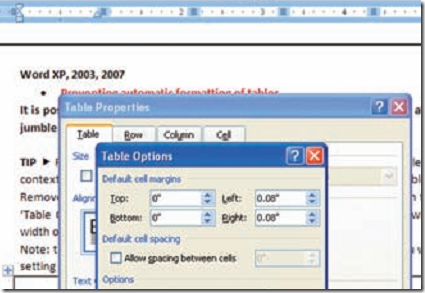
  • Right-click any one cell of the table in the document and select the ‘Table Properties’ context command.

  • prevent auto table format in wordGo to the ‘Options’ button in the ‘Table’ tab  and remove the check mark in front of the option ‘Automatically resize to fit contents’ in the next dialog box, i.e., ‘Table Options’.

  • Then close all opened dialogs with ‘OK’.
After this, Word will not adjust the column width of this table on its own.
Note: The changed option works for the current table only. If required, you will have to configure the setting for every table separately.

Open Source Mac – Best Free Software for Apple MAC OSX Users

The web is flooded with sites offering free and unlimited downloadable software for the Windows Operating System and not many for mac users. Hence we found Open Source Mac. This site has only the best free open Source Software available for Apple mac OS X users and has a very clean interface with a list of all the free software applications for Mac Users.

open source mac

It has applications like for every use like audio and video players, Instant messengers, word processor, Games, P2P applications, MP3 management, File sharing, email, Running Windows Software on Mac, Text and graphic editors and so on for download.

The emphasis of the site makers is on the quality of software rather than the number of software available for download, hence all the software available here are free from any kind of viruses or errors. This site also functions as a community of mac fans and enthusiasts around the world who develop these applications for mac. Free applications are now yours, mac users!

How to Record Narrations/Voiceover for Slides in PowerPoint


MicroSoft PowerPoint lets you record a narration or voiceover for slides, which can be useful if you’re not making your presentation to a live audience. The narrations for slides will make the slideshows more interesting and lively. In order to record a narration,
record narration or voice over for powerpoint slides

  • First click the Slide Show tab in the ribbon.

  • Click the Record Narration icon.

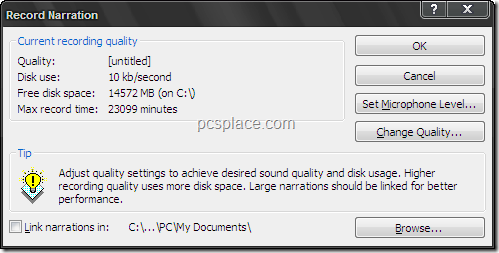
  • Here you have the option to change the Microphone volume, quality, and where the file should be saved.

  • Click OK once you’re done with the changes.

  • Click the Current Slide button if you want to record a voiceover starting from the current slide, or click the First Slide button if you want to start from the very beginning.

  • The slideshow will then start and you can start speaking into the microphone.

  • Click to switch to the next slide and continue speaking as necessary.

  • When all the slides are done, you’ll be asked whether you want to save the timings for each slide.

  • Click Save and you can now present your slideshows with narrations.

How to Add Voice Annotations / Audio Files to your Text in Word Documents


Microsoft Word allows you to easily add voice annotations to your text document. An annotation is a note or a special instruction that is added along with the document. It is an audio file which can be inserted into the document. These are mainly helpful in making guides or tutorials.
record voice annotations to word documents
However,MicroSoft Word offers you an option to add annotations in the form of an audio file. This file may be any prerecorded file, or a brand new recording. In this tip we will show you how you can easily add a voice annotation, by recording it.
To do so, simply follow these steps.


  • Position the cursor accordingly.


  • Click the "Insert" menu.


  • Select "Object".


  • Click the "Create New" tab in the "Object" dialog box.


  • From the "Object Type" list, select "Wave Sound".


  • Click "OK".


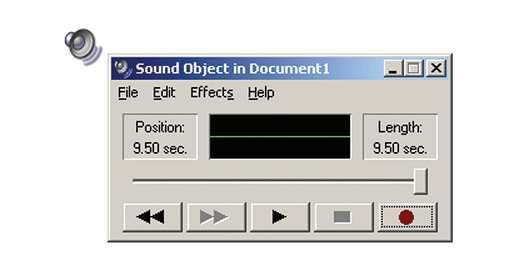
  • The Microsoft Sound Recorder automatically opens.


  • Click the "Record" button, to start recording your voice annotation.


  • To stop the recording, click the "Stop" button.

Create your Own Ringtones, themes, wallpapers for free

These days, most cell phone users are not completely satisfied with the ringtones,themes that come preloaded on their cellphones.Here is a fast and easy way to edit ringtones online in just six easy steps and all this for free! After your ringtone is created or edited, you can download the ringtone to a computer andtransfer it to the mobile or use the mobile’s GPRS to download it directly. Let’s learn how tocreate your own ringtones from your favorite songs online for Free.

Register :

Log on to www.zedge.com and register for free. It just takes 10 seconds. If you want to use the GPRS features of your phone, then specify the name of the service provider, phone model and so on. Log in and start creating your own cool ringtones. Click on the under ‘Ringtone Maker’ in the Tools menu.

create your own ringtone from favorite songs

Select the Track :

On the ‘Ringtone Maker’ page click ‘Browse’ and select a song of your choice from the computer. Make sure that the sound file is not bigger than 10 MB. It supports all popular formats like mp3,wav,etc

Upload the song you want as your Ringtone :

Upload the song that you want to use to make the ringtone. Wait for the audio file to load. Make sure you have a fast internet connection if your files are of bigger sizes.

Play the song :

After the file is uploaded, in the ringtone maker, click on the ‘Play’ to check if it plays. Select the part of the track you want to use and mark it accordingly.

Crop the song and Preview the Ringtone :

To crop the selected track, drag the ‘START’ or ‘END’ tabs in the ringtone maker. The ‘MOVE’ tab allows you to move the entire selection left or right. The selection can be looped by clicking the ‘Loop’ button. Click ‘Play’ to preview the ringtone, if you are happy with what you hear, click ‘Done’ else go back and edit it again till you get your favorite selection.

Download the ringtone to your PC :

To download the ringtone to your PC, click ‘Download to PC’ and copy it to your phone. You can now set it and show off to your friends.

And there’s more; this site can also be used to create wallpapers, themes, and screensavers. These days the Internet has quite a number of websites that offer similar features.

Check out these sites.
http://makeownringtone.com/
http://mobile17.com/
http://www.mytinyphone.com/
http://www.phonezoo.com/
http://www.myxertones.com/

So go ahead, get started and create your own ringtones from the most happening songs and show them off to your friends and share them if you like. If you know any other better alternatives, Do let me know..